JOIN OUR TELEGRAM CHANNEL • NO ADS • EXCLUSIVE TIPS
🎮 FREE to join — no subscription, no credit card ⚡ Tricks & codes BEFORE website release 🎁 Limited-time game codes & download keys 🏆 Win STEAM GAMES in global contests 🚫 Zero ads • zero spam • 100% clean 📲 Instant delivery — direct to Telegram 🎮 FREE to join — no subscription, no credit card ⚡ Tricks & codes BEFORE website release 🎁 Limited-time game codes & download keys 🏆 Win STEAM GAMES in global contests 🚫 Zero ads • zero spam • 100% clean 📲 Instant delivery — direct to Telegram
JOIN
WHY JOIN THE CHANNEL?
All perks — zero noise • 100% free
💎
100% FREE to join No subscription, no credit card required — ever
Tricks BEFORE website Get exclusive codes and strategies before anyone else
🎁
Limited-time game codes Temporary download keys — grab them fast, they expire
🏆
Steam Games Giveaways Global contests to win full Steam games & gift cards
🚫
Zero Ads • Zero Spam No promotions, no junk — just pure gaming content
📲
Instant Telegram Delivery Everything arrives directly — faster than websites or email
🔒
Members-Only Content Exclusive guides & secrets never published anywhere else
🌍
Global Community Join gamers worldwide and get real-time alerts
JOIN FOR FREE — GET STEAM CONTESTS & EXCLUSIVE CODES

Desktop Mate: guida all'avvio automatico

Questa guida ti mostrerà come avviare automaticamente Desktop Mate all'apertura del computer. Seguire i passaggi seguenti per impostare la funzione di avvio automatico per Desktop Mate.

Passaggi per l'avvio automatico di Desktop Mate

Per prima cosa creeremo un collegamento al launcher
Fare clic sull'icona dell'ingranaggio

Passa il mouse su «Gestisci» e fai clic su «Sfoglia file locali»
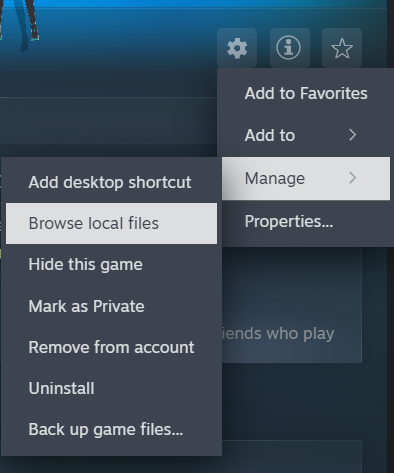
Ora dovrebbe portarti qui
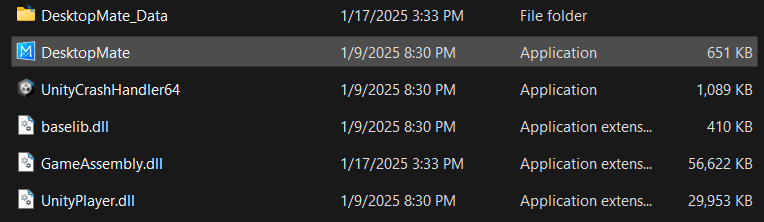
Fare clic con il tasto destro su “Desktop Mate”

Se su Windows 11, fai clic su «Mostra più opzioni»
Fai clic su «Crea collegamento»

Se su Windows 10, fai clic su “Crea collegamento”

Ora dovresti avere la scorciatoia
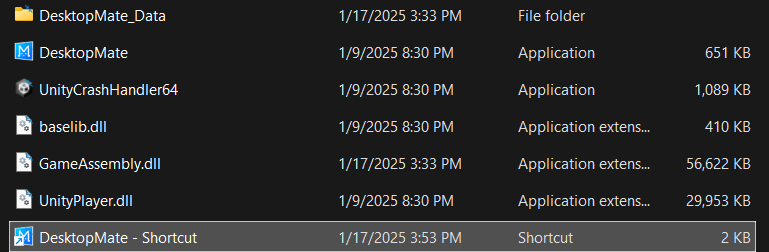
Ora seleziona solo la scorciatoia e premi Ctrl + X
Successivamente, premi WindowsKey + R e dovrebbe visualizzare questo menu
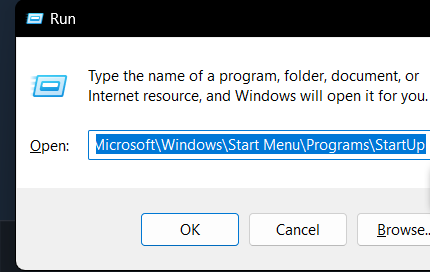
Incollalo nella casella (questa è la cartella di avvio di Windows)
C:\Utenti\Nome utente\AppData\Roaming\Microsoft\Windows\Menu Avvio\Programmi\Avvio

Infine, incolla il collegamento nella cartella premendo Ctrl + V

Ta-da! Ora puoi vedere Miku ogni giorno senza avviarlo tu stesso!

Altre guide:

  • Desktop Mate: come avere più Desktop Mate (passo dopo passo)
  • Desktop Mate: come personalizzare i tuoi personaggi con le mod

PLAY GUÍAS - CÓDIGOS DE JUEGOS

Play Guías

0
Would love your thoughts, please comment.x
()
x